
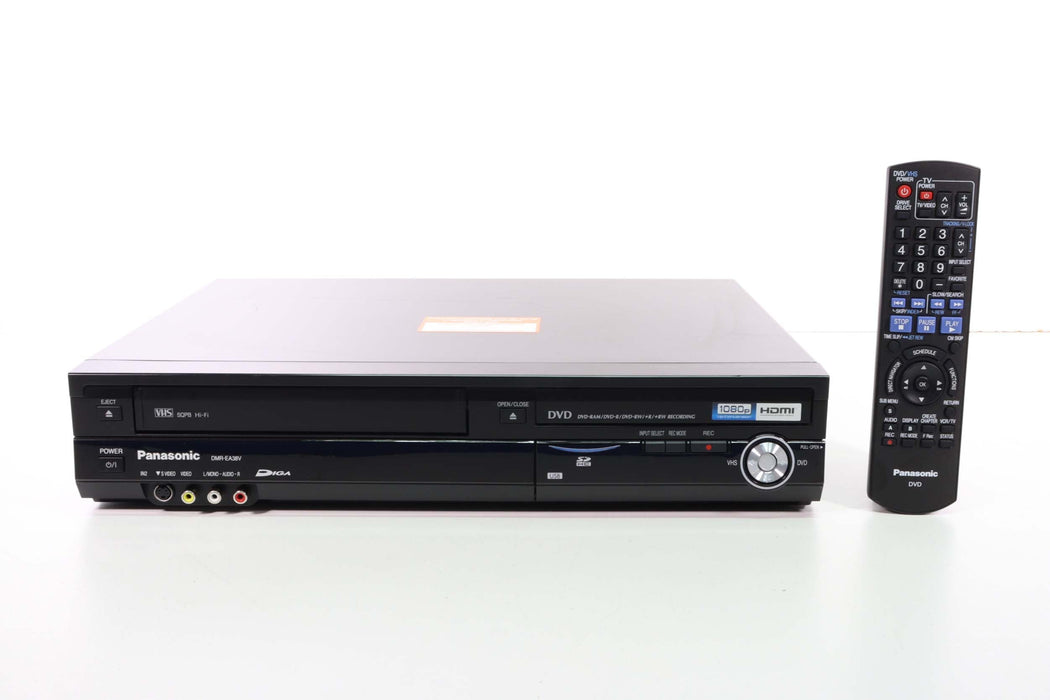


PANASONIC DMR-EA38V DVD Recorder HDMI (With Remote)
How does this device work?
To set up your VHS to DVD recorder, just connect it to your TV, insert your tape and a blank recordable disc, then press “Copy” or "Dubbing". It will then begin copying. Lastly, finalize the disc. It is that easy!
What is a VHS to DVD Converter Recorder?
A VHS to DVD recorder offers quite a lot of value in one machine. They will, of course, allow you to transfer VHS tapes to DVD with minimum fuss, but they also function as DVD and VHS players. Plus, you can use it as a video cassette recorder, so you can record the news or a show from your TV right to a VHS tape.
Do you need HDMI?
If you are connecting the VHS to DVD recorder to a newer Smart TV, it is highly recommended that you get one with HDMI to eliminate compatibility issues.
Rediscover your home movies with the Panasonic DMR-EA38V, a reliable DVD Recorder + VCR combo built for smooth transfers and everyday playback. This unit lets you convert VHS tapes to DVD with simple one-touch dubbing and enjoy clean, stable video. Its vintage-friendly design offers dependable performance without HDMI—perfect for classic TV setups. Professionally refurbished for consistent recording, playback, and long-term reliability. Own a trusted Panasonic combo deck—SpenCertified and ready to perform.
Condition:
SPENCERTIFIED – Fully certified by Spencer.
Refurbished and SPENCERTIFIED. 100% tested and functional. Cleaned inside and out; worn parts replaced as needed.
Cosmetic Condition: 8/10
Functional Condition: 10/10
Item-Specific Restoration Notes: VCR heads cleaned and tape path aligned; transport lubricated. DVD lens cleaned and tray mechanism serviced. All controls and internal switches cleaned using WD-40 Specialist Electrical Contact Cleaner (safe for electronics).
Features:
-
DVD Recorder + VHS Combo Unit
-
VHS to DVD 1-Touch Dubbing
-
DVD Recording & Playback
-
Plays DVD, DVD-R/RW, CD, CD-R/RW
-
Hi-Fi Stereo VHS Playback
-
Front A/V Inputs for camcorders
-
On-Screen Display & Easy Navigation
-
Timer Recording & Copy Functions
-
Composite Video Output
-
S-Video Output
-
Digital Audio Output (Coaxial)
-
Analog Stereo Audio Outputs
-
Parental Control Options
Specifications:
-
Supported Formats: VHS, S-VHS (playback only), DVD-R, DVD-RW, CD
-
Outputs: Composite, S-Video, Coaxial Digital Audio, Stereo RCA
-
Inputs: Front Composite A/V
-
Power: 120V AC
-
Dimensions: Approx. 17" W × 3.3" H × 12" D
-
Weight: Approx. 9 lbs
-
Made in China
About SpenCertified:
At SpenCertified, we specialize in fully tested and refurbished vintage electronics. Every product undergoes a multi-step inspection process to ensure reliable performance, clean presentation, and satisfaction guaranteed.
How to Transfer VHS to DVD on the Panasonic DMR-EA38V
These steps walk you through the simplest and fastest way to dub a VHS tape to DVD using the built-in front panel controls.
1. Insert Your Tape and Blank Disc
-
Insert your VHS tape into the VCR section.
-
Insert a blank DVD-R into the DVD tray.
-
Allow both to load completely before continuing.
2. Open the Dubbing Menu
-
On the front panel, press and hold the “DUBBING (VHS → DVD)” button for 3 seconds.
-
A Dubbing Menu will appear on your TV.
3. Select Your Dubbing Method
Use the remote to choose one of the available options:
-
Full Dub – Automatically transfers the entire VHS tape.
-
Manual Dub – Gives you control over when the recording starts and stops.
-
Auto Finalize – Optional setting that automatically finalizes the DVD when dubbing completes.
Tip: Enabling Auto Finalize is the easiest way to ensure your DVD will play in other DVD players without additional steps.
4. Start the Transfer
-
Confirm your selections.
-
The unit will begin playing the VHS and recording it onto the DVD.
-
The machine handles everything automatically if Full Dub + Auto Finalize are selected.
5. If Auto Finalize Is Off
If you choose not to use Auto Finalize, you must finalize the DVD yourself:
-
Press FUNCTIONS.
-
Go to DVD Functions → Disc Management → Finalize.
-
Select Yes and wait for the process to complete.
You’re Done!
Your new DVD is now ready to play on most standard DVD players.